



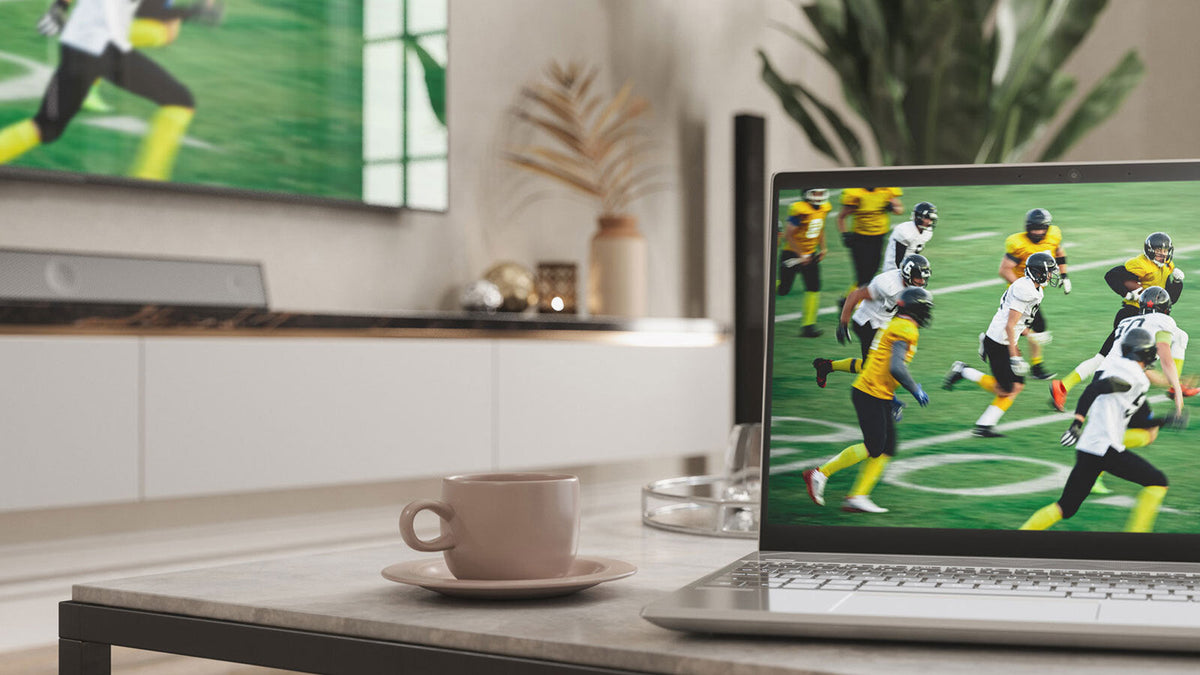
How to Stream Sports Wirelessly to Your TV with Aluratek Streamcast
October is one of the best sports months of the year. Football is in full swing, basketball is back, hockey has returned to the ice, and the World Series is ready to take center stage.
That's a lot of big games — and a lot of screens. The good news is that the best screen in your house is probably the big one on the wall. With the right setup, you can get the game onto your TV without running a long HDMI cable across the room, downloading another app, or creating another account.
That's where the Aluratek Streamcast family comes in. Streamcast Pro and Streamcast Mobile both make it easy to wirelessly stream video to a TV, monitor, or projector, but each is designed for a different type of device and game-day setup.

Meet the Aluratek Streamcast Lineup
Both Streamcast kits do the same core job: they send video wirelessly from your device to a TV, monitor, or projector at distances of up to 100 feet and at up to Full HD 1080p resolution.
Each kit includes a transmitter and receiver that are pre-paired out of the box, so there are no apps to download and no accounts to create.
The main difference is the device you connect to the transmitter:
- Streamcast Pro connects to the HDMI port on a compatible laptop or desktop computer.
- Streamcast Mobile connects to the USB-C port on a compatible smartphone, tablet, or laptop.
So the real question is: which device do you use to watch the game? Let's look at a few real-world game-day setups.
Streamcast Pro: The Home Field Advantage
Scenario 1: The Sunday Football Command Center
It's Sunday. The wings are in the oven, the group chat is already arguing about a fourth-down call, and your laptop is open on the kitchen counter with the game queued up on your streaming service.
The living room TV is where you want to watch it, but you're not about to run an HDMI cable across the floor for everyone to trip over.
With Streamcast Pro, plug the receiver into your TV's HDMI port and the transmitter into your laptop's HDMI port. Connect power, and your laptop's screen appears on the big screen — without running an HDMI cable across the room or signing into another smart TV app.
Why Streamcast Pro shines here: it's built for live action with less than 80ms of latency, helping what you see on the TV keep pace with the game. It also uses a peer-to-peer wireless connection, so there's no Streamcast network setup required.
Scenario 2: The Backyard or Garage World Series Watch Party
You've decided this is the year you finally put that projector to work. Maybe it's aimed at a screen in the backyard or maybe it's lighting up the garage wall while everyone settles into folding chairs with a cooler nearby.
Streamcast Pro works with HDMI-enabled TVs, monitors, and projectors. Connect the receiver to the display and the transmitter to your laptop, and you can wirelessly send the picture from up to 100 feet away under supported conditions.
🔥 Hot Tip: Do a test run before game day. Nothing kills the pregame mood like troubleshooting during the national anthem.
 Aluratek Streamcast Pro shown in use.
Streamcast Mobile: The Away Game Ace
Scenario 3: Watching the Game at a Friend's House
You got the invite: game night, big TV, good snacks. The problem is that your streaming subscription has the game, and you'd rather not sign into your account on someone else's TV.
That's where Streamcast Mobile comes in. Plug the receiver into the TV's HDMI port, connect the transmitter to your compatible USB-C phone, tablet, or laptop, connect power, and start streaming.
Because the transmitter and receiver are pre-paired, there's no Streamcast account or app to configure. When the night's over, unplug the kit and take it with you.
Why Streamcast Mobile shines here: it's compact, portable, and designed for plug-and-play screen sharing. Move it from one compatible device or display to another without having to create another account.
Scenario 4: Road Trips, Hotels, and Moving Between Rooms
Maybe you're traveling for work on the night of a big game. Or maybe you're just moving from the living room to the bedroom because someone else claimed the good couch.
Streamcast Mobile can turn a compatible HDMI display into your big screen, whether that's a hotel TV, a spare-room television, or a monitor in your home office.
And it's not limited to game day. The same kit can also display a presentation from a compatible phone, tablet, or laptop on a conference-room or classroom display.
🔥 Hot Tip: Turn on Do Not Disturb before casting your phone. Your screen is being displayed on the TV, and nobody needs your notifications appearing during a two-minute drill.
 Aluratek Streamcast Mobile shown in use.
Streamcast Pro vs. Streamcast Mobile: Quick Comparison
| Feature | Streamcast Pro | Streamcast Mobile |
|---|---|---|
| Best for | Laptop or desktop streaming | Phone, tablet, or compatible laptop streaming |
| Transmitter connection | HDMI | USB-C |
| Receiver connection | HDMI | HDMI |
| Wireless range | Up to 100 ft | Up to 100 ft |
| Resolution | Up to Full HD 1080p | Up to Full HD 1080p |
| Setup | Pre-paired; no Streamcast app or account | Pre-paired; no Streamcast app or account |
| Streaming services | Netflix, Hulu, Disney+, YouTube and more* | Netflix, Hulu, Disney+, YouTube and more* |
| Price | $99.99 | $99.99 |
*Separate streaming-service subscriptions may be required. Compatibility may vary by device and service.
How to Set Up Aluratek Streamcast
Streamcast Pro Setup
- Plug the receiver (RX) into an HDMI port on your TV, monitor, or projector.
- Plug the transmitter (TX) into the HDMI port on your compatible laptop or desktop.
- Connect both units to power using the included USB-C cables, select the appropriate HDMI input on your display, and start streaming.
Streamcast Mobile Setup
- Plug the receiver (RX) into an HDMI port on your TV, monitor, or projector.
- Plug the transmitter (TX) into the USB-C port on your compatible smartphone, tablet, or laptop.
- Connect both units to power using the included USB-C cables, select the appropriate HDMI input on your display, and start streaming.
The transmitter and receiver are already paired, so there's no additional pairing process required.
Your Wireless Game-Day Streaming Checklist
Before kickoff, tip-off, puck drop, or first pitch, run through this quick checklist:
- Check which streaming service carries your game and make sure your subscription is active.
- Make sure your TV, monitor, or projector has an available HDMI port.
- Choose the right Streamcast: HDMI laptop or desktop for Streamcast Pro; compatible USB-C phone, tablet, or laptop for Streamcast Mobile.
- Do a test run before game day.
- Charge your source device or keep it connected to power.
- Set your TV or display to the correct HDMI input.
- Make sure both the transmitter and receiver are powered.
- Turn on Do Not Disturb if you're casting from a phone.
- Adjust your device settings so the screen doesn't auto-lock during the game.
- Use landscape orientation when appropriate so the video better fills the TV screen.
- Keep the transmitter and receiver within range with as few obstructions as possible.
- Heading to a friend's house? Toss Streamcast Mobile in your bag.
- Put on the lucky jersey. Obviously.
Frequently Asked Questions About Aluratek Streamcast
Do I need to download an app or create an account?
No. Streamcast Pro and Streamcast Mobile are designed for plug-and-play operation. The Streamcast hardware does not require an additional app, driver, software installation, or Streamcast account.
Can I use my streaming subscriptions?
Supported streaming services can be displayed using your compatible source device. You'll still need an active subscription to any paid streaming service you want to watch. Device, service, and content compatibility may vary.
Does Streamcast need my home Wi-Fi network?
The Streamcast connection itself does not require setup on your home Wi-Fi network. However, your source device still needs an internet connection when you're watching content that is streamed from the internet.
How far can I be from the TV?
Streamcast supports a wireless range of up to 100 feet. Actual range can vary depending on walls, obstructions, interference, and the surrounding environment.
Ready for Game Day?
Whether your game-day setup involves a laptop on the kitchen counter, a projector in the garage, or a phone in your pocket on the way to a friend's house, there's an Aluratek Streamcast designed to help you put the action on the big screen.
Shop Aluratek Streamcast Pro for wireless streaming from a compatible HDMI-equipped laptop or desktop.
Shop Aluratek Streamcast Mobile for wireless streaming from a compatible USB-C smartphone, tablet, or laptop.
Have a favorite game-day setup or sports ritual? Share it with Aluratek on social media.
Questions About Streamcast?
If you have questions about Streamcast Pro, Streamcast Mobile, device compatibility, or setup, please contact the Aluratek support team.
Phone:
1-866-580-1978
Email:
support@aluratek.com
Share:
Tech Treats This Halloween from Aluratek